A WordPress plugin conflict can make a working website suddenly look broken. You may see a white screen, missing page elements, a failed login, unexpected redirects, or an error message after installing, updating, or configuring a plugin.
These problems are common because plugins interact with WordPress core, your theme, PHP, your hosting environment, and other plugins. A new security, caching, SEO, form, or e-commerce plugin may not work correctly with an older component already installed on your website.
This guide explains how to troubleshoot a WordPress plugin conflict without making the problem worse. It is suitable for business websites, blogs, service websites, and WooCommerce stores in Dubai, Abu Dhabi, Sharjah, Ras Al Khaimah, and across the UAE.
What does a WordPress plugin conflict look like?
A plugin conflict does not always make the entire website unavailable. Sometimes, only one feature stops working. For example, a contact form may disappear, the Elementor editor may keep loading, or a WooCommerce product page may lose its layout.
Common signs include:
- A blank white screen or a “critical error” message
- The WordPress dashboard becoming inaccessible
- A login redirect loop after activating a plugin
- Pages displaying incorrectly after an update
- JavaScript errors, missing buttons, or broken menus
- Slow loading that begins immediately after a plugin change
- Checkout, payment, search, or form features failing
If the problem started immediately after a plugin update or installation, that plugin is a strong suspect. However, the actual cause may be an interaction between two plugins, a theme incompatibility, an outdated PHP version, insufficient server resources, or cached files.
Before troubleshooting, protect the website
Do not begin by deactivating plugins randomly on a live business website without creating a recovery point. If the website receives leads, bookings, or orders, a rushed change could remove important settings or make diagnosis more difficult.
First, create a complete backup of the WordPress files and database if your hosting panel or backup system is available. Record which plugin was recently installed or updated, when the problem began, and what visitors see. Screenshots, error messages, and timestamps can help you or a developer identify the cause more quickly.
If you have a staging website, reproduce the issue there instead of testing directly on production. A staging copy allows you to deactivate, update, or replace plugins while the live website continues serving customers.
Step 1: Check whether the issue is temporary
Before assuming that a plugin is broken, test the website in a private browser window and on a different device. Clear the WordPress cache, hosting cache, and content delivery network cache if applicable. A cached error can remain visible even after the underlying issue has been corrected.
Ask whether the problem affects everyone or only logged-in administrators. If visitors see the correct page but administrators do not, browser extensions, user permissions, or dashboard-specific scripts may be involved. If the website is unavailable for everyone, investigate the server, domain, database, and error logs as well as plugins.
Step 2: Use WordPress Recovery Mode if available
Recent WordPress versions may send the site administrator an email when they detect a fatal PHP error. That message can provide a special Recovery Mode link. After opening it, WordPress may allow you to access the dashboard while the suspected plugin or theme is paused only for your administrator session.
Look for the component named in the error notice. Do not assume that the named plugin is always the only cause, but treat it as the first item to investigate. Deactivate it, record the change, and test the affected pages in a separate browser window.
If no recovery email arrives, check your spam folder and confirm that the administrator email address is current. A hosting control panel, file manager, or developer may be needed if the dashboard remains inaccessible.
Step 3: Find the conflicting plugin by testing safely
The most reliable method is to deactivate all plugins and reactivate them one at a time. This is known as a conflict test. It identifies whether the problem is caused by a plugin and which component triggers it.
- Make sure you have a current backup.
- Deactivate all plugins, if you can access the dashboard.
- Check whether the website or affected feature works again.
- Reactivate plugins individually, testing after each activation.
- When the problem returns, note the last plugin activated.
- Test that plugin against the theme and other plugins before deciding on a permanent fix.
On a WooCommerce website, test important customer journeys after each change, including product viewing, adding an item to the basket, checkout, payment, and order confirmation. A plugin may appear harmless on the homepage while breaking a critical store function.
If you cannot access the WordPress dashboard, use the hosting file manager or SFTP. Navigate to wp-content/plugins, then rename the suspected plugin folder. For example, changing example-plugin to example-plugin-disabled usually prevents WordPress from loading it. This requires care, and you should avoid changing files without a backup or a way to reverse the change.
Step 4: Check the theme, WordPress version, and PHP
If deactivating plugins does not solve the problem, temporarily switch to a standard WordPress theme, such as a current default theme. A plugin may work with one theme but conflict with custom templates, page builder integrations, or theme-specific functions.
Next, check whether WordPress, the theme, and the plugins are compatible. Updating everything at once makes troubleshooting harder, so avoid bulk updates while diagnosing the issue. Update one component at a time, test the website, and keep a record of each change.
PHP compatibility also matters. A plugin may rely on an older PHP function, or your hosting environment may not meet the plugin’s requirements. Your hosting provider can confirm the active PHP version, memory limit, execution time, and relevant server errors. For related recovery steps after a PHP change, see Innomedia’s safe guide to a WordPress website broken after a PHP update.
Step 5: Read the error logs instead of guessing
Error logs often reveal more than the visible message on the page. Your hosting control panel may provide PHP error logs, WordPress debug logs, or application logs. If you enable WordPress debugging, do so carefully and avoid displaying errors to visitors on a live website.
For temporary diagnosis, WordPress debugging settings may record errors in wp-content/debug.log. A developer can review the file for the plugin name, PHP function, file path, or line number involved. After troubleshooting, disable public error display and remove unnecessary diagnostic settings, because technical errors can expose information about your website.
What should you do after identifying the conflict?
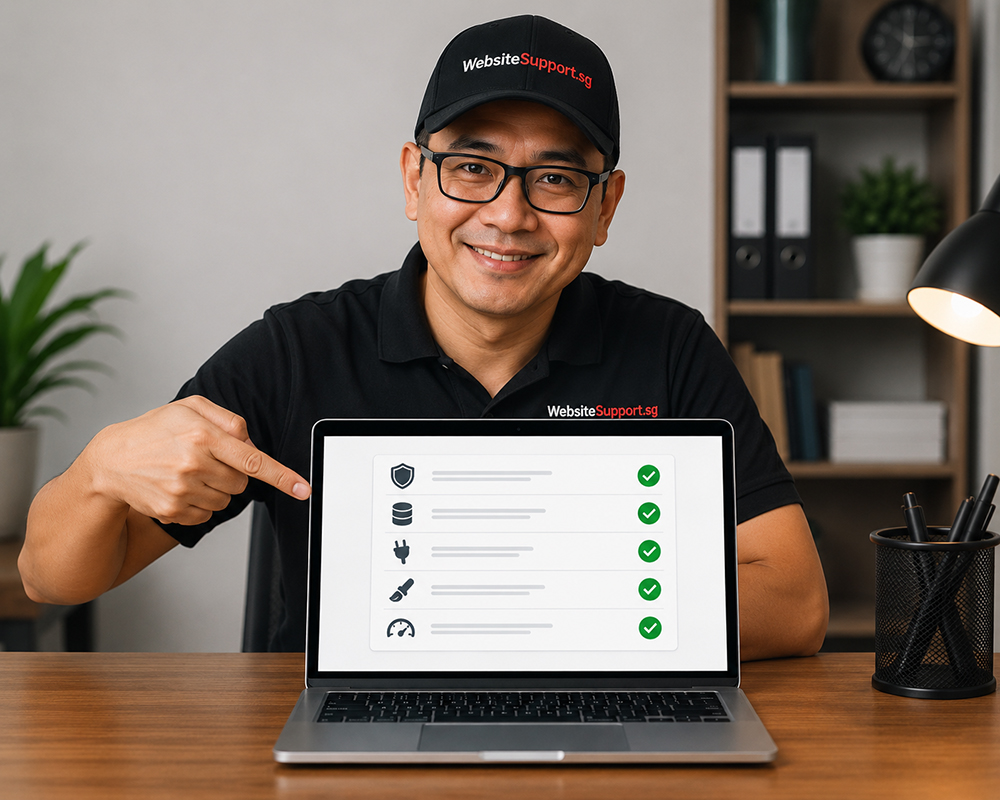
The correct solution depends on the cause. You may need to update the plugin, roll back to a compatible version, change one setting, replace it with another plugin, or ask the developer for a compatibility fix. Sometimes two plugins provide overlapping functions, such as caching, image optimisation, security rules, or SEO controls. Running both can create duplicate processes and unexpected behaviour.
Do not keep a vulnerable or abandoned plugin active simply because it is familiar. Check its support activity, compatibility information, update history, and suitability for your website. A cheaper plugin is not necessarily lower risk if it handles payments, customer data, forms, or access control.
Once the conflict is resolved, clear all relevant caches, test the website on mobile and desktop, and check key conversion paths. Confirm that administrators can log in, forms send notifications, analytics still load, and important pages return the correct status code.
How to prevent future plugin conflicts
Prevention starts with a controlled update process. Keep WordPress, themes, plugins, and PHP supported, but do not update them blindly on a busy production website. Schedule maintenance during a quieter period, create a backup, and test significant changes on staging first.
It also helps to reduce unnecessary plugins. Every additional plugin can introduce maintenance requirements, performance overhead, or compatibility risk. Review installed components regularly and remove plugins that are inactive, duplicated, unsupported, or no longer required.
A maintenance routine should include backups, security checks, update reviews, uptime monitoring, and testing of important forms or store functions. Innomedia’s guide to WordPress website maintenance tasks provides a useful reference for organising this work.

When should you get professional help?
Contact a WordPress professional if the website is generating a critical error, losing orders, exposing customer information, or remaining inaccessible after a plugin is disabled. Professional website repair can be especially valuable when you do not have reliable backups, hosting access, staging, or technical experience.
A developer can inspect logs, restore a clean version, compare files, test plugin combinations, and apply a fix without relying on trial and error. This is often safer than repeatedly changing settings on a live business website.
Final checklist
When a WordPress plugin conflict affects your website, follow this order:
- Record what changed and when the problem began.
- Create or confirm a complete backup.
- Clear caches and test in a private browser window.
- Use Recovery Mode or deactivate the suspected plugin.
- Test plugins individually to identify the conflict.
- Check the theme, PHP version, WordPress version, and error logs.
- Update, replace, or reconfigure the conflicting component.
- Test forms, logins, checkout, mobile layouts, and analytics before closing the issue.
A plugin conflict is usually fixable, but the safest approach is controlled diagnosis rather than repeated changes. If your UAE business website is already affecting leads, customers, or sales, contact Innomedia for practical WordPress troubleshooting and repair support.