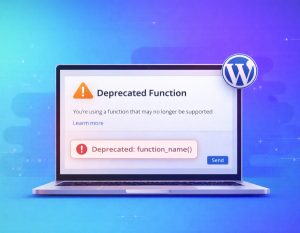
A WordPress website broken after a PHP update can be alarming, especially when your business website, enquiry forms, or online store suddenly stops working. You may see a critical error message, a blank white screen, a 500 Internal Server Error, or a layout that no longer displays correctly.
PHP is the server-side programming language that WordPress and many plugins use. Updating it can improve security and performance, but an older theme, plugin, or custom code may not be compatible with the newer version. The result is often described as a WordPress PHP compatibility issue, a website broken after hosting changes, or a WordPress site failing after a server upgrade.
This guide explains what to check first, how to regain access, and when it is safer to involve a professional rather than continuing with trial and error.
What does a PHP update break in WordPress?
A PHP update does not always damage the WordPress core itself. More commonly, it exposes outdated or poorly coded components that were already dependent on older PHP behaviour. A plugin may use a function that has been removed, a theme may contain deprecated code, or custom functionality may produce a fatal error.
Typical symptoms include:
- A “There has been a critical error on this website” message.
- A blank page or partially loaded homepage.
- A 500 error across the website or only on specific pages.
- The WordPress dashboard becoming inaccessible.
- Broken menus, missing styling, or an Elementor page that will not load.
- WooCommerce features, checkout pages, or account areas failing.
The timing is an important clue. If the website worked before the PHP change and failed immediately afterwards, compatibility should be investigated before you edit content, reinstall WordPress, or change unrelated settings.
Before troubleshooting, protect the website
Avoid making several changes at once. If you deactivate plugins, edit files, change PHP versions, and restore a backup without recording each step, it becomes difficult to identify the real cause or return to a stable state.
First, contact your hosting provider and confirm exactly what changed. Ask for the previous PHP version, the new PHP version, the time of the change, and whether the hosting account has a recent full backup. If a backup was created before the update, do not overwrite it while investigating.
Take a screenshot of the error and note whether the problem affects the public website, the WordPress login page, the dashboard, or only certain functions. This information can make support much faster for a UAE business operating from Dubai, Abu Dhabi, Sharjah, or another location.
Step 1: Confirm whether PHP is the cause
Check your hosting control panel, or ask your host, which PHP version is active. You can also review the change history if your provider offers it. Compare the current version with the version the website used previously.
If the site became unavailable immediately after moving to a newer PHP release, ask the host whether a temporary rollback is possible. A rollback can restore access, but it should be treated as a short-term recovery step, not a permanent solution. Older PHP versions may no longer receive security support, and remaining on them can leave the website exposed.
Do not repeatedly switch between versions on a live e-commerce website without a plan. Each change can affect caching, scheduled tasks, payment integrations, and other server settings.
Step 2: Use WordPress Recovery Mode
Recent WordPress versions may send the site administrator a recovery-mode email when a fatal PHP error occurs. The message can identify the plugin or theme that caused the failure and provide a temporary login link.
After entering Recovery Mode, WordPress may pause the suspected component for your administrator account. You can then update it, deactivate it, or contact its developer. Check your spam folder if you do not see the email, and confirm that the administrator email address in WordPress is still accessible.
Recovery Mode does not repair the underlying compatibility problem for every visitor. It is an access and diagnosis tool, so test the public website in a private browser window after making any change.
Step 3: Find the plugin or theme conflict
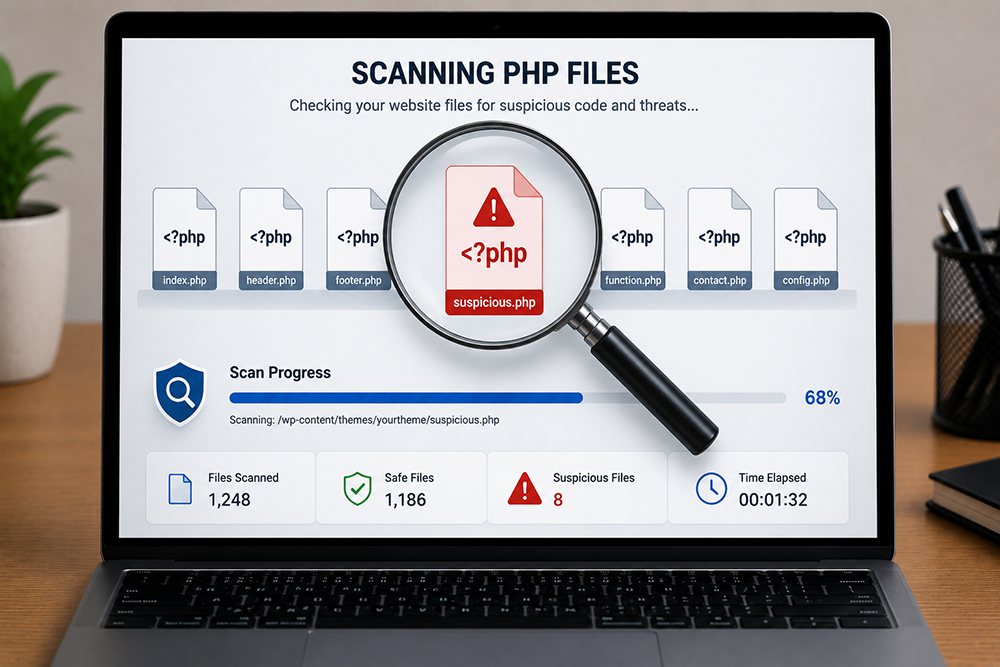
If you cannot access the dashboard, ask your hosting provider for temporary file-manager or SFTP access. Make a backup before renaming folders or editing files.
The standard isolation process is to deactivate plugins, then reactivate them one at a time while checking the website after each change. If the website starts working after all plugins are disabled, reactivate them individually until the error returns. The last plugin activated is a strong suspect, although two plugins can also conflict with one another.
If plugins are not responsible, switch temporarily to a default WordPress theme. A theme can fail after a PHP upgrade because of outdated template files, custom functions, or an incompatible page-builder integration. Never delete the active theme while investigating. Renaming its folder or switching to a default theme is safer because it can be reversed.
Once you identify the problem component, check whether it has a compatible update. If it has not been maintained, replace it with a reputable alternative rather than leaving it disabled indefinitely.
Step 4: Enable error logging without displaying errors publicly
When the cause is not obvious, WordPress debugging logs can provide the specific file and line that triggered the failure. In the wp-config.php file, a developer can enable logging with settings similar to these:
define( 'WP_DEBUG', true );
define( 'WP_DEBUG_LOG', true );
define( 'WP_DEBUG_DISPLAY', false );
Errors are commonly written to wp-content/debug.log. The log may mention a plugin, theme, PHP function, or custom code file. Do not leave public error display enabled on a live website because it can reveal technical information to visitors.
After diagnosing the issue, disable debugging unless your developer has a specific reason to keep it active. Remove or protect old log files because they may contain paths, queries, or other sensitive technical details.
Step 5: Check PHP limits and server settings
Sometimes the PHP version is compatible, but the update also changed server limits. A site may fail because of insufficient memory, a lower maximum execution time, or an upload limit that affects plugins and page builders.
Ask your host to review the PHP error log and confirm values such as memory limit, maximum input variables, execution time, and file upload size. This is particularly important for WooCommerce stores, multilingual websites, membership websites, and sites using visual editors.
Server configuration is not the same as a plugin conflict. Increasing limits may help with a resource error, but it will not fix outdated PHP code. The error log should guide the decision.
When should you restore a backup?
If the website is affecting leads, bookings, payments, or customer access, restoring a known-good backup may be the fastest way to reduce downtime. Before restoring, confirm when the backup was taken and what content may be lost, including orders, form submissions, blog posts, or customer accounts.
A safer approach is to restore the backup to a staging copy first, test it with the current PHP version, and then update the theme and plugins before returning to production. If staging is not available, ask your host whether the restore can be performed while preserving a separate copy of the current files and database.
How to prevent another PHP compatibility failure
PHP changes should be managed as part of a planned WordPress maintenance process, not treated as an isolated switch. Keep WordPress core, themes, and plugins updated, remove abandoned extensions, and maintain reliable off-site backups.
Before a future server change, create a staging copy and test the main user journeys. For a service business, that may include the enquiry form, phone links, and booking flow. For an online store, test product pages, cart, checkout, payment confirmation, customer emails, and order notifications.
It is also useful to maintain a simple inventory of your active plugins, theme version, PHP version, hosting provider, and administrator contacts. This makes it easier to identify what changed when a problem appears.
For recurring updates, professional website maintenance and support can help your team test changes before they affect customers. If the site is already inaccessible, an experienced technician can provide WordPress repair and website fixing while preserving evidence and backups.
What not to do after a PHP update
Do not delete WordPress core files, reinstall the entire website, or remove plugins randomly. These actions can destroy useful diagnostic information and may cause data loss. Do not edit production code without a backup, and do not assume that changing the PHP version alone permanently solves the problem.
If the website contains customer data, payment functionality, or business-critical enquiries, restrict access while the issue is being investigated. A temporary maintenance page is usually better than allowing visitors to encounter broken checkout pages or visible technical errors.

Final checklist for a WordPress site broken after PHP update
- Confirm the PHP version change and record the previous version.
- Secure a full backup before changing files or plugins.
- Check WordPress Recovery Mode and administrator email.
- Review hosting and PHP error logs.
- Test plugins and the active theme one at a time.
- Check PHP memory and server limits where relevant.
- Test forms, pages, login, checkout, and mobile layouts.
- Update or replace incompatible components before moving to a newer PHP version again.
If your UAE business website is still showing a critical error, blank screen, or 500 error after these checks, contact Innomedia with the error message, hosting details, recent changes, and backup information. The more accurately the problem is documented, the more safely it can be repaired.