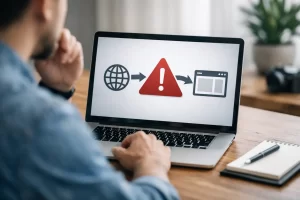
A website outage is not just a technical issue when your business depends on leads, online orders, booking requests, or paid advertising. Every minute customers see an error page can mean lost revenue, wasted ad spend, and a weaker first impression.
If your WordPress website is down, what to do next depends on the cause, but your priority is simple: confirm the problem, protect your data, and restore the site without making the outage worse.
WordPress Website Down? What to Do Next First
Do not start deleting plugins or changing settings at random. A rushed fix can overwrite useful error information, break a working backup, or create a larger security problem. Take a controlled approach instead.
Start with these immediate checks:
Open your website in an incognito browser window and on a mobile connection.
Ask a team member or customer in another location to test the site.
Check whether every page is down or only specific pages, such as checkout, contact forms, or the WordPress admin area.
Take a screenshot of the error message and note the exact time the issue started.
Avoid installing new plugins, updating WordPress, or changing DNS settings until you know what failed.
#1 Identify the Error
The error message often points to the right next step.
A “This site can’t be reached” message may indicate a hosting, DNS, or domain problem.
A 500 Internal Server Error commonly relates to a plugin conflict, damaged file, incorrect server setting, or exhausted server resources.
A white screen, known as the WordPress white screen of death, often points to a theme, plugin, or PHP memory issue.
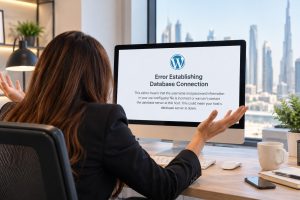
A database connection error can mean the database server is unavailable, credentials were changed, or your hosting account has a resource problem.
If the website loads but shows a security warning, your SSL certificate may have expired or been misconfigured. This is especially urgent for eCommerce stores because shoppers will not trust a checkout page that browsers flag as unsafe.
#2 Check Hosting, Domain, and Server Status
Confirm that your hosting plan is active and your billing details are up to date. An expired payment method, an exceeded bandwidth limit, or a suspended account can take a site offline without warning.
Make sure your domain registration has not expired. Then confirm that the domain nameservers and DNS records still point to the correct hosting server.
A sudden increase in traffic, bot activity, a large backup process, or an inefficient plugin can consume all available CPU, memory, or database connections. Your hosting error logs can reveal whether the site crashed because of memory limits, missing files, PHP errors, or database failures.
#3 A Plugin or Theme May Be Conflicting
If you can access the WordPress dashboard, check the Updates section and recent activity. Disable the most recently updated plugin first, then test the site. If the dashboard is unavailable, a qualified web developer can disable plugins through the hosting file manager or server access without deleting your data.
Do not deactivate every plugin permanently as a shortcut. That can disable payment gateways, forms, tracking, inventory tools, and security features. You can also consider hiring a professional WordPress developer to diagnose the faulty plugin and repair or replace it.
Themes can cause similar issues, particularly after WordPress core updates or custom code changes. Temporarily switching to a default WordPress theme can help identify whether the active theme is responsible.
#4 Restore From a Clean Backup
A recent, verified backup is often the fastest route to recovery. Before restoring anything, confirm when the backup was created and whether it contains both website files and the database.
The right backup choice depends on what happened. If a plugin update caused the outage 20 minutes ago, restoring a backup from the previous day may be more disruptive than rolling back that one change. If malware has damaged the site, however, restoring a clean backup from before the infection may be the safest option.
Hire a professional WordPress developer who can help you recover your website quickly.
#5 If Your Website is Compromised
Unexpected redirects, unfamiliar admin users, spam pages, suspicious pop-ups, altered files, and browser malware warnings are signs that the outage may be security-related. Do not simply restore the homepage and assume the problem is solved. Malware can remain hidden in plugins, themes, databases, user accounts, or server files.
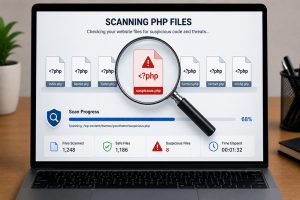
Hire a malware removal company that should first contain the issue by restricting access, taking a backup for investigation, and scanning the full website environment. The cleanup process should remove malicious code, identify the entry point, update vulnerable components, reset passwords, and review administrator accounts.
After malware removal, your website developer should harden the site with stronger passwords, limited user permissions, security monitoring, protected login access, and a dependable backup routine.
When to Call a WordPress Support Team
You can handle simple issues such as an expired domain payment or a known plugin conflict. But professional website support is the smarter choice when there is malware, database corruption, server errors, lost orders, repeated downtime, or no reliable backup.
Innomedia Technologies helps businesses fix WordPress issues, restore compromised websites, maintain online stores, and keep revenue-focused websites performing reliably. An experienced support team can diagnose the real cause instead of applying temporary fixes that create new problems later.