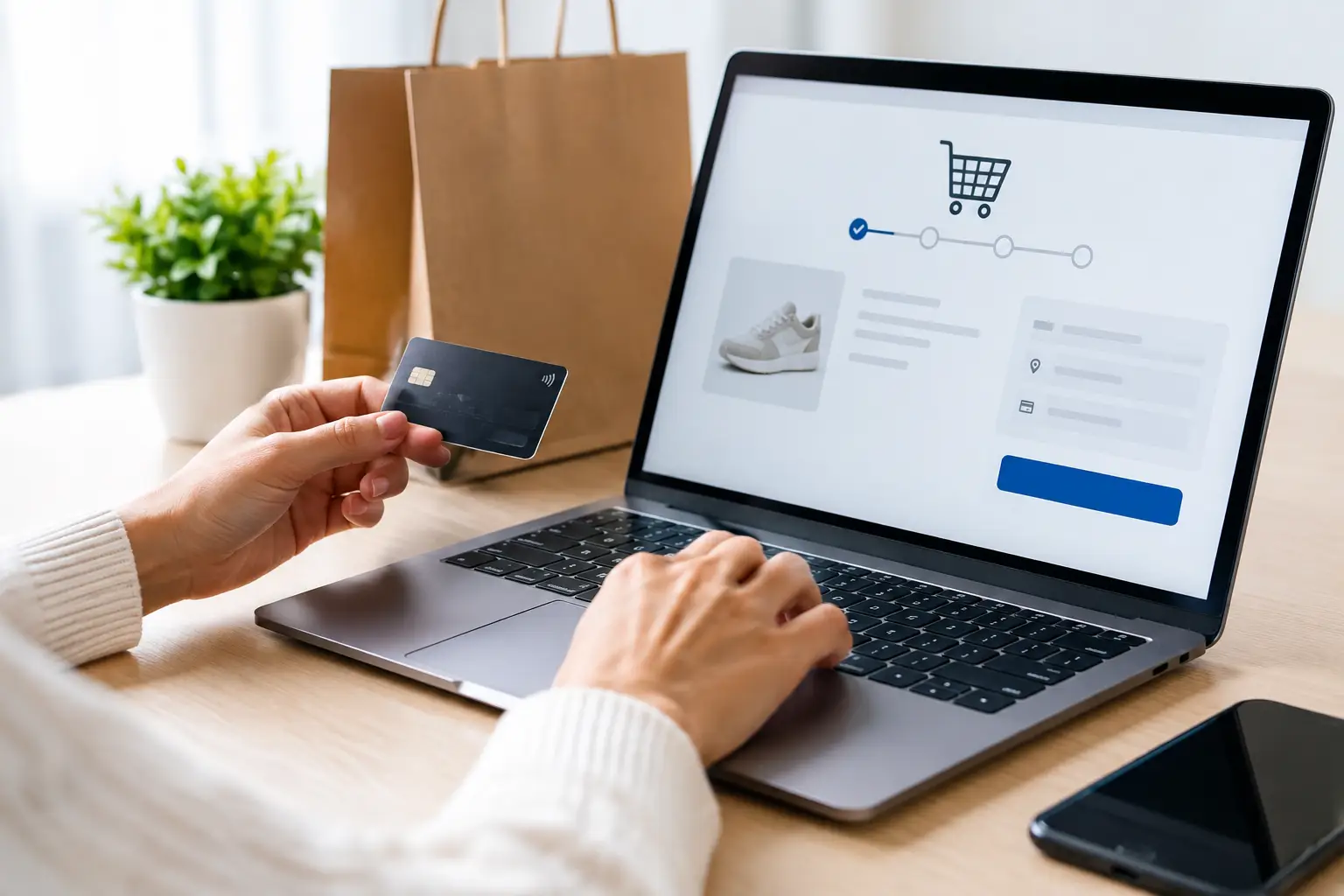
When WooCommerce checkout stops working, customers may be able to browse products and add items to their carts, but they cannot complete the purchase. The problem may appear as a spinning payment button, a blank checkout page, an error after submitting customer details, or an order that never reaches the payment provider.
This guide explains how to troubleshoot a WooCommerce checkout not working problem without making risky changes to a live UAE store. It covers related issues such as WooCommerce payment failure, checkout page errors, failed order processing, missing payment methods, and a checkout button that does nothing.
Start by identifying what is actually failing
Before disabling plugins or editing code, reproduce the problem carefully. Test the checkout from a private browser window, a different device, and, if possible, a different internet connection. Note whether the issue affects every product, only certain products, logged-in customers, guest customers, or one payment method.
Also check whether the problem is consistent across desktop and mobile. A checkout that works on a computer but fails on mobile may have a JavaScript, theme, layout, or browser compatibility problem rather than a payment provider problem.
Record the exact message shown to the customer. “There was an error processing your order,” a failed card authentication, a missing shipping option, and a page that continuously reloads point to different causes.
#1 Check the basic WooCommerce settings first
Many checkout problems come from a setting that was changed during a product, theme, plugin, or payment gateway update. In WordPress, go to WooCommerce > Settings > Advanced, and confirm that the correct pages are assigned for the cart, checkout, account, and terms and conditions.
Open the checkout page in the WordPress editor and confirm that it still contains the WooCommerce Checkout block or the correct checkout shortcode. If the page is empty, replaced by the wrong content, or assigned to another page, customers may not be able to proceed.
Then review the following settings:
- Guest checkout is enabled if you want customers to purchase without creating an account.
- The store currency, such as AED, is configured correctly.
- Required billing and shipping fields are not hidden or made compulsory by mistake.
- At least one valid shipping method is available for the customer’s location.
- The selected payment gateway is enabled, configured, and connected to the correct live or test account.
#2 Investigate payment gateway failures
If the checkout form accepts customer details but fails at the payment stage, the payment gateway deserves immediate attention. Confirm that the API keys, merchant credentials, webhook settings, and callback URLs match the current account. A gateway may also reject transactions when the website is still in test mode, the domain is not approved, or the account requires additional verification.
Check the gateway’s own transaction dashboard, if available. It may reveal a declined card, an invalid currency, an authentication failure, an expired session, or a server-to-server communication problem that is not visible in WooCommerce.
For UAE stores, review whether the payment method supports the currencies, cards, wallets, and customer locations you intend to serve. Do not assume that a gateway configured for one country, currency, or account environment will work correctly after a website migration or domain change.
Never test live payments repeatedly with real customer details. Use the provider’s test environment where possible, and make one controlled live transaction only after confirming the gateway settings and refund process.
#3 Check shipping, tax, and product rules
WooCommerce may prevent checkout when it cannot calculate shipping or when the cart does not meet a product rule. This is common when a shipping zone does not include the customer’s emirate, when a product is missing a shipping class, or when free shipping requires a minimum order value that has not been reached.
Review WooCommerce > Settings > Shipping, and test addresses in Dubai, Abu Dhabi, Sharjah, and any other locations you serve. Confirm that the relevant shipping zones overlap correctly and that each zone has at least one available method.
Tax settings can also affect the final order total. Check whether prices are entered inclusive or exclusive of tax, whether the correct tax class is applied, and whether rounding rules create an unexpected difference. If an extension controls VAT or invoicing, test it separately rather than changing several tax settings at once.
#4 Clear cache, sessions, and stale checkout data
Checkout pages are dynamic because they calculate cart contents, shipping, taxes, and payment information in real time. A caching plugin, server cache, content delivery network, or security service can accidentally serve an old checkout page or cache customer-specific data.
Exclude the cart, checkout, and account pages from page caching. Also exclude WooCommerce session and cart fragments where your caching system provides those controls. Clear the website cache, hosting cache, CDN cache, and browser cache after making the change.
In WooCommerce, review the tools under WooCommerce > Status > Tools. Depending on your version and configuration, you may be able to clear customer sessions and transients. Do this carefully, because clearing sessions can remove active carts. It should not be the first response to every issue, but it can help when old session data is preventing checkout from refreshing correctly.
#5 Look for JavaScript and theme errors
A checkout button that does nothing, fields that keep reloading, or payment options that disappear often indicate a JavaScript error. Open the browser developer tools, select the Console tab, and reproduce the issue. Errors referring to the checkout script, payment gateway, jQuery, or an optimisation plugin can provide a useful clue.
Temporarily disable JavaScript combination, minification, delay, and deferred-loading features for the checkout page. Some performance settings work well on content pages but break the scripts needed to update totals or communicate with a payment provider.
Check the active theme, too. Custom checkout templates, outdated WooCommerce template files, and aggressive design customisations can become incompatible after an update. If the issue began after a theme change, test with a standard WooCommerce-compatible theme on a staging site rather than changing the live design immediately.
#6 Test for a plugin conflict safely
Payment gateways, shipping tools, coupon extensions, product add-ons, invoice systems, security plugins, and optimisation tools can all affect checkout. A conflict may occur even when each plugin works correctly on its own.
Take a full backup first, then use a staging website if one is available. Temporarily deactivate non-essential plugins, leaving WooCommerce and the payment gateway active, and test again. Reactivate extensions one at a time until the problem returns. This process identifies the likely source without permanently removing important store functionality.
Do not deactivate security or payment tools on a public store without understanding the risk. If you need a broader diagnosis, a professional WordPress plugin conflict investigation can help isolate the issue with less disruption.
#7 Review WooCommerce logs and hosting resources
WooCommerce logs may contain the technical detail needed to distinguish a gateway rejection from a server failure. Go to WooCommerce > Status > Logs, select the relevant date and integration, and look for failed requests, authentication errors, timeouts, or rejected webhooks. Avoid sharing secret keys or full payment information when sending logs to a developer.
A 500 error, timeout, or checkout failure across several payment methods may indicate a hosting problem. Review PHP error logs, memory usage, PHP version compatibility, database errors, and server firewall rules. A security firewall may block legitimate requests from a payment provider, while insufficient PHP memory may cause the checkout process to stop unexpectedly.
If the problem followed a WordPress, WooCommerce, theme, or PHP change, restore the affected component on staging and compare the results. Avoid repeatedly updating or downgrading a live store without a backup and a clear rollback plan.
What to do when checkout is still broken
If you cannot identify the cause, keep the troubleshooting evidence together: the first time the issue appeared, affected devices, affected payment methods, error messages, recent updates, browser console errors, and relevant WooCommerce logs. This makes technical support faster and reduces guesswork.
While the repair is in progress, consider displaying a clear temporary notice, offering an alternative payment method, or accepting orders through a controlled manual process. Do not send customers to an unsecured form or ask them to share card details by email or messaging apps.
For wider faults involving the theme, hosting, database, or several WordPress components, professional website repair may be safer than making untracked changes to a live store. A developer can work from a backup or staging copy, test the full order journey, and document the final fix.
Prevent future WooCommerce checkout problems
After restoring checkout, place a test order from product selection through confirmation. Verify the order status, stock reduction, customer email, administrator notification, invoice, payment capture, and refund workflow. Test both desktop and mobile, and include more than one delivery location if your store serves multiple emirates.
Keep WordPress, WooCommerce, extensions, PHP, and the theme updated, but test important updates before applying them to production. Scheduled backups, uptime monitoring, security alerts, and routine WordPress maintenance can reveal problems before customers encounter them.
A working checkout is not just a technical requirement. It is the final step between product interest and revenue. Treat checkout changes as carefully as changes to pricing, inventory, and payment operations.
Need help fixing your WooCommerce checkout?
If customers cannot complete orders, Innomedia UAE can help diagnose WooCommerce checkout failures, payment gateway issues, plugin conflicts, and hosting-related errors. Contact the team with the error message, recent changes, and any available logs so the problem can be assessed efficiently and repaired safely.