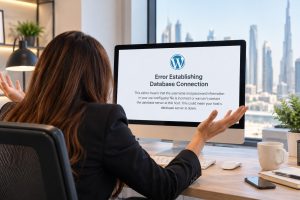
A message saying “There has been a critical error on this website” is one of the most stressful WordPress problems a business can face. Your homepage may be unavailable, the WordPress dashboard may refuse to load, or both may show the same error.
This often happens immediately after updating WordPress core, a plugin, a theme, or the server’s PHP version. However, the update is not always the only cause. An incompatible extension, exhausted server memory, damaged files, or a failed update process can also trigger the problem.
This guide explains what to do when you have a WordPress critical error after an update, including how to identify the faulty component, regain dashboard access, and decide when professional WordPress repair is safer than experimenting on a live business website.

What does the WordPress critical error mean?
A WordPress critical error generally means that PHP, the programming language used by WordPress, encountered a fatal problem while loading the website. WordPress may display a basic error message to visitors and send an automated recovery email to the site administrator.
Common variations of this problem include:
- WordPress showing a critical error after a plugin update
- A website crashing after updating the WordPress theme
- The WordPress admin dashboard not loading after an update
- A blank screen, fatal PHP error, or “technical difficulties” message
- A website becoming unavailable after a hosting or PHP version change
First, avoid making the problem worse
Before attempting a fix, pause automatic updates if you can, and avoid repeatedly clicking update buttons. Do not delete WordPress folders, change database settings, or reinstall the entire website without a current backup. Those actions can remove useful evidence or create additional data-loss risks.
Check whether the problem affects the whole website, only the dashboard, or particular pages. Also test the site in a private browser window and from a different internet connection. A cached error page can sometimes make a temporary issue appear permanent.
Step 1: Check the recovery email
WordPress may send an email to the administrator address configured in the website. Search for messages containing terms such as “technical difficulties,” “critical error,” or “recovery mode.” Check spam and junk folders, too.
The email may identify a plugin or theme and provide a link that lets you access the dashboard in recovery mode. Recovery mode temporarily pauses the suspected component for your administrator session. Visitors may still see the error, but you may be able to log in and deactivate, update, or replace the faulty extension.
If the email names a plugin that was updated immediately before the failure, do not assume that the plugin is permanently unusable. The issue may be an incompatibility with your current WordPress version, theme, PHP version, or another plugin.
Step 2: Identify what changed
Make a short timeline of the incident. Note which update ran first, when the website stopped working, whether the hosting company changed PHP, and whether anyone edited theme files or installed a new extension.
This simple timeline is often more useful than changing several things at once. If a plugin update was followed by the error, it becomes the first item to investigate. If several updates ran together, isolate them one at a time rather than guessing.
For more detailed guidance on isolating extension problems, see our guide to finding and fixing a WordPress plugin conflict. A conflict may appear as a critical error even when every individual plugin works correctly in a different setup.
Step 3: Disable the suspected plugin safely
If recovery mode is unavailable, you can usually disable a plugin through your hosting control panel’s file manager or SFTP. Open the wp-content/plugins directory and rename the folder of the suspected plugin. For example, adding “-disabled” to the folder name prevents WordPress from loading it.
Only change the folder of the likely culprit first. Renaming every plugin at once may restore the website, but it makes the diagnosis harder and can affect important functions, including security, forms, caching, payments, and backups.
If the website loads after the plugin is disabled, keep it inactive while you check whether the developer has released a compatible version. Avoid reinstalling an older plugin version from an untrusted download. If the plugin controls a key business function, test its replacement on a staging copy before making further changes.
Step 4: Test the theme if the plugin is not responsible
A theme can cause a critical error through outdated template code, custom functions, or incompatibility with a new WordPress or PHP release. If you can access the dashboard, temporarily activate a default WordPress theme, such as a current Twenty Twenty theme.
If you cannot access the dashboard, a developer can change the active theme through the database or file system. This should be done carefully, especially on websites with custom templates, WooCommerce features, or page-builder content. Switching themes may restore access, but it can also change the appearance of the live site.
Do not remove the original theme before confirming that a working backup exists. Custom theme code may contain important layouts, tracking settings, or business-specific functionality.

Step 5: Check PHP compatibility and memory limits
WordPress updates and plugin updates can expose problems in older PHP code. If your hosting account recently changed PHP versions, the website may need a compatible plugin, theme, or custom-code update. This is related to, but not identical to, a website breaking after a PHP update.
Review the PHP version in your hosting panel, and compare it with the requirements published by WordPress, your theme provider, and your key plugins. Do not switch to an outdated PHP version permanently just to hide the error. A temporary rollback may help recovery, but the long-term fix should address compatibility and security.
Insufficient PHP memory can also produce fatal errors, particularly on websites using page builders, large catalogues, image processing, or several resource-intensive plugins. A hosting provider or developer can review the server logs and adjust safe limits where the hosting plan allows it.
Step 6: Review logs instead of guessing
Server error logs and WordPress debugging logs can reveal the exact file, function, and extension involved. WordPress debugging can be useful during diagnosis, but detailed errors should not remain visible to visitors on a live website because they may expose paths, configuration details, or other sensitive information.
When enabled temporarily, logging should normally be configured to record errors without displaying them publicly. After troubleshooting, disable public debugging and remove any temporary diagnostic changes. If the log points to custom code, a theme file, or an unfamiliar server error, it is usually safer to involve a qualified developer.
When should you restore a backup?
Restoring a backup may be the quickest route when the update damaged files, when several components changed at once, or when the website supports important enquiries, bookings, or online sales. Choose a backup from before the error and confirm what it contains: database, uploads, plugins, themes, and configuration files may be stored separately.
Do not restore over the live site without considering new orders, form submissions, customer records, or content changes made since the backup. For an active UAE business, the safer process may be to create a temporary recovery copy, preserve recent data, and then apply the fix in a controlled way.
How to prevent another critical error
Once the website is working, prevention matters more than simply removing the error message. Keep WordPress, themes, plugins, and PHP reasonably current, but avoid treating automatic updates as a complete maintenance strategy.
- Take a tested backup before major updates.
- Use a staging website for high-risk plugin, theme, and PHP changes.
- Remove inactive or abandoned plugins instead of leaving them installed.
- Check plugin and theme compatibility before updating.
- Monitor forms, logins, checkout pages, and important landing pages after changes.
- Keep administrator accounts protected with strong passwords and multi-factor authentication.
For ongoing protection, a structured website maintenance service can help with updates, backups, security checks, and early detection of faults. This is particularly useful for small teams that rely on their website but do not have an in-house WordPress specialist.
When to get professional WordPress repair
Contact a developer promptly if the error involves payment functions, customer accounts, sensitive data, a multisite installation, custom code, or a website that remains offline after disabling the suspected extension. You should also get help if you are unsure whether a backup is complete or if the site shows signs of hacking rather than a normal update failure.
In these situations, professional website repair in the UAE can focus on preserving data, identifying the root cause, restoring the site safely, and documenting what changed. The goal is not merely to make the homepage appear again; it is to ensure that forms, tracking, content, accounts, and business processes work properly.

Final checklist
If your WordPress website has a critical error after an update, start with the recovery email, identify the last change, and take a backup before editing files. Disable only the suspected plugin or theme, review compatibility and logs, and restore a known-good backup when that is the safer option.
Once the site is recovered, test the homepage, key service pages, contact forms, login, mobile layout, and any payment or booking flow. A controlled maintenance process can reduce the chance that the next update turns into an unexpected business interruption.