Being sent back to the WordPress login page every time you enter your username and password is frustrating, especially when your website is still live and customers are trying to reach you. This problem is commonly called a WordPress login redirect loop, WordPress login loop, or wp-admin redirect issue.
In many cases, the password is correct. The problem is that WordPress cannot save or recognise the login session. A misconfigured URL, damaged cookie, security plugin, caching layer, or server setting may cause the dashboard to redirect repeatedly instead of opening normally.
This guide explains how to troubleshoot a WordPress login redirect loop safely. The steps are suitable for business websites, company portals, and WooCommerce sites in Dubai, Abu Dhabi, Sharjah, Ras Al Khaimah, and elsewhere in the UAE.
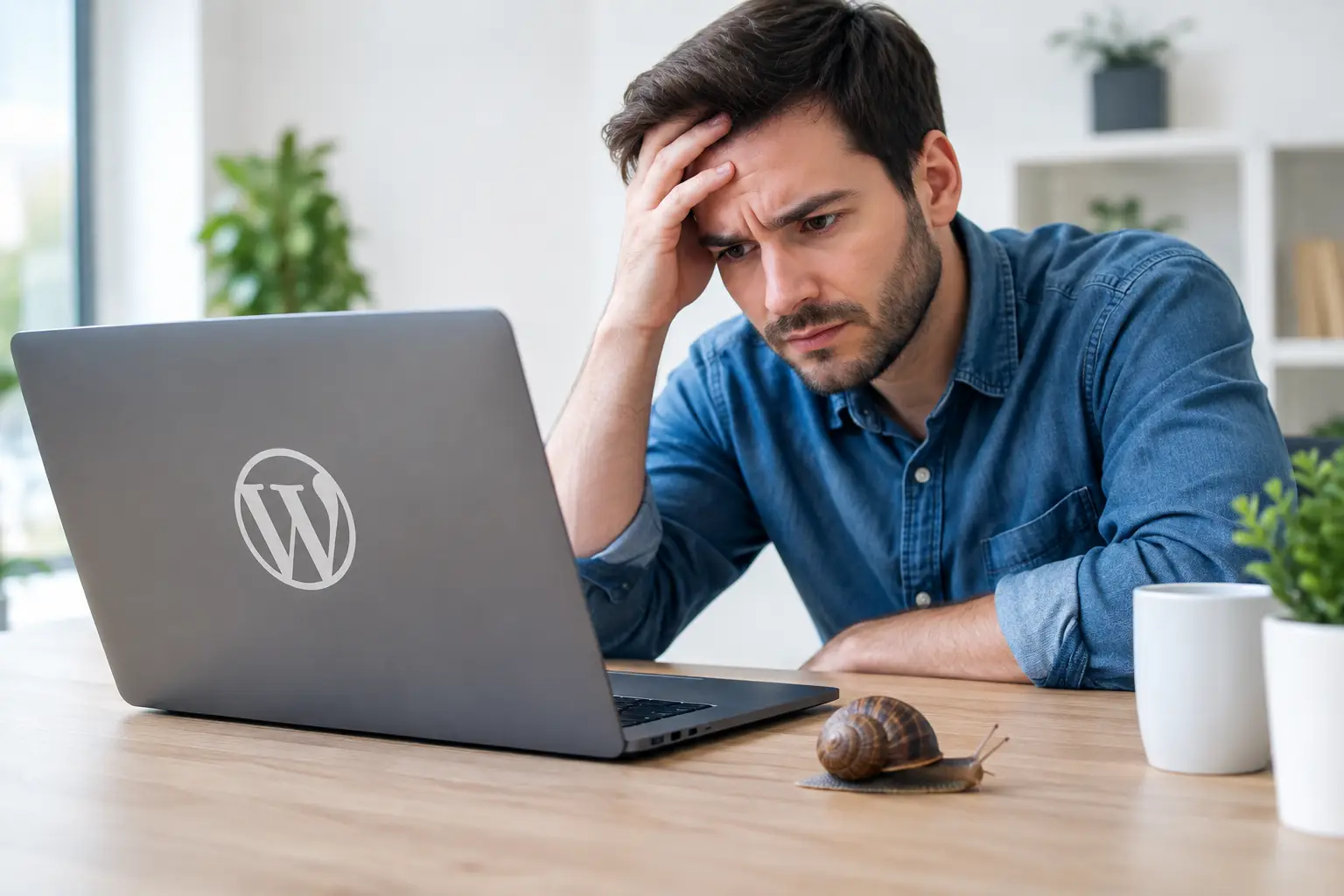
What does a WordPress login redirect loop look like?
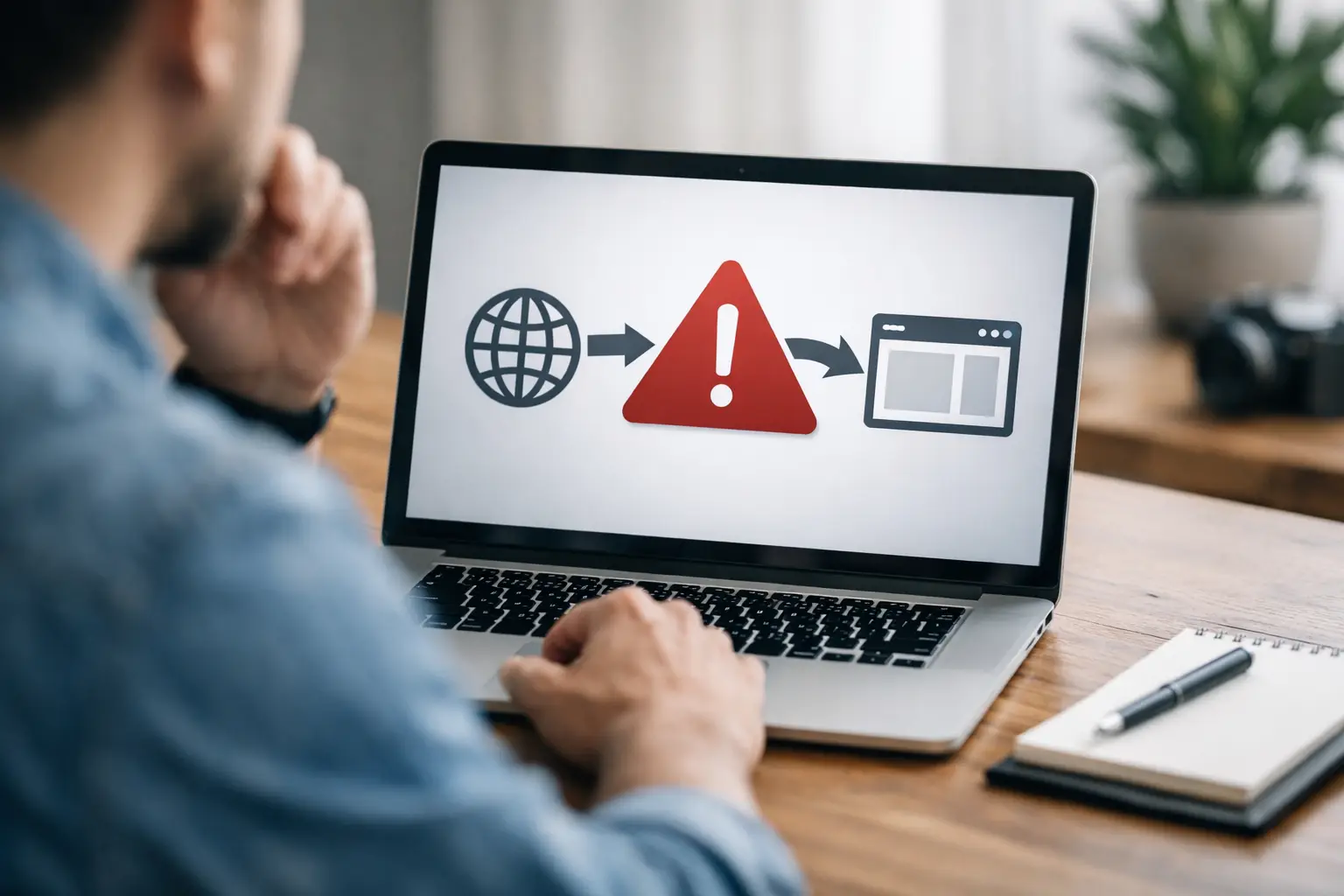
The symptoms can vary slightly, but the pattern is usually easy to recognise:
- You visit
/wp-adminor/wp-login.php. - Your username and password appear to be accepted.
- You are redirected to the login page again, sometimes without an error message.
- The browser may show “too many redirects,” or it may continue refreshing.
- You may be able to view the public website, but you cannot access the WordPress dashboard.
Before changing files or database values, test the login page in a private browser window. Also try a different browser and, if possible, a different network. If the problem only happens on one device, the cause may be an old cookie, browser extension, or local cache rather than the website itself.
Common causes of a WordPress login redirect loop
Incorrect WordPress and site URLs
WordPress stores the website address in its settings. If the configured URL does not match the way visitors access the site, login cookies may be rejected. Common examples include switching between http and https, using www in one place but not another, or moving the website to a new domain.
This is particularly common after an SSL installation, website migration, domain change, or hosting move. A site may appear normal to visitors while the administration area keeps redirecting.
Cached or invalid browser cookies
WordPress uses cookies to maintain your authenticated session. If those cookies are corrupted, blocked, or linked to an earlier domain configuration, the login process may not complete. Caching plugins, content delivery networks, and some security tools can make the behaviour more confusing by serving an outdated login response.
Plugin or theme interference
Security, login customisation, redirection, membership, and caching plugins can all affect authentication. A recent plugin update may introduce a compatibility issue, while a custom theme function may redirect users based on their role or login status.
If you suspect an extension, follow the safer diagnostic approach in our guide to finding and fixing a WordPress plugin conflict. The aim is to identify the responsible component without deleting settings or changing several variables at once.
Incorrect server rules or SSL configuration
Rules in .htaccess, Nginx configuration, or a hosting control panel may create a redirect chain. This can happen when both the hosting platform and a WordPress plugin force HTTPS, or when a reverse proxy and the website disagree about whether the request is secure.
Blocked cookies, security rules, or a damaged installation
Some firewalls block login requests after repeated attempts, while strict cookie settings can prevent a valid session from being stored. Less commonly, a damaged WordPress core file or malware infection may interfere with the login process. If you also notice unfamiliar administrators, unexpected redirects, or modified files, treat the issue as a potential security incident rather than only a login fault.

How to fix the WordPress login redirect loop
1. Confirm the correct login address
Use the standard address for your website, such as https://example.com/wp-login.php. Avoid repeatedly refreshing the page, and do not test random admin URLs from untrusted sources. If a security plugin has changed the login URL, you may need to check its documentation or contact the person who configured it.
2. Clear cookies and test privately
Clear cookies for the website, or open a private browsing window. Disable browser extensions temporarily, particularly privacy, password-management, and redirect-related extensions. If the login works in private browsing, clear the normal browser session before making changes to WordPress.
3. Check the WordPress URL settings
If you can access the dashboard through another user account, open Settings > General and compare the “WordPress Address” with the “Site Address.” They should normally use the correct domain, protocol, and preferred www or non-www format.
If you cannot access the dashboard, an administrator can temporarily define the URLs in wp-config.php. Make a backup before editing the file, and place the following lines above the comment that says “That’s all, stop editing!”:
define('WP_HOME', 'https://example.com');
define('WP_SITEURL', 'https://example.com');
Replace the example address with your real website address. Do not add a trailing slash, and do not guess the correct protocol if your SSL setup is incomplete. A hosting professional can confirm the correct values.
4. Disable plugins without dashboard access
If the issue started after an update, you can test plugins through the hosting file manager or SFTP. First, make a backup. Then rename the wp-content/plugins folder to something such as plugins-disabled. This disables all plugins temporarily.
Try logging in again. If access is restored, rename the folder back to plugins, then activate plugins one at a time until the redirect returns. This identifies the likely cause. Avoid leaving every plugin disabled on a production website for longer than necessary, because important security, form, or e-commerce functions may stop working.
5. Review caching and CDN settings
Clear the cache in your WordPress caching plugin, hosting platform, and CDN. Do not cache /wp-admin, /wp-login.php, or logged-in sessions. If a firewall or CDN is handling HTTPS, check that the origin server and WordPress both recognise the request as secure.
For a UAE business website, this step matters when a hosting provider, CDN, and domain security service are managed by different suppliers. Each layer may have its own redirect rule, and resolving the loop requires checking the complete request path.
6. Inspect the .htaccess file carefully
On Apache hosting, a damaged or overly aggressive .htaccess file can cause repeated redirects. Download a copy first, then temporarily rename the file to .htaccess-old. If the website loads differently, regenerate the file by opening Settings > Permalinks and clicking “Save Changes,” provided dashboard access has returned.
Do not paste redirect rules from random forums into a live website. A single incorrect rule can affect the login page, product URLs, forms, and search-engine crawling.
7. Check security logs and recent changes
Review your hosting error logs, security plugin logs, and recent deployment history. Look for changes made immediately before the loop began, including plugin updates, theme edits, SSL changes, domain configuration updates, and server migrations.
If there are signs of compromise, change administrator passwords from a trusted device, preserve a backup for investigation, and avoid simply reinstalling plugins over suspicious files. Professional website repair and WordPress fixing can help separate a configuration error from a broader security problem.
What not to do when you are locked out
Do not repeatedly reset the password if the credentials are already correct. A password reset will not fix a cookie, URL, or server redirect issue. Similarly, avoid deleting plugins, themes, or database tables without a verified backup. Those actions can remove settings, orders, customer records, or design components without addressing the underlying cause.
It is also risky to edit the database directly unless you know the relevant tables, values, and recovery procedure. A small mistake in the options table can make the website harder to restore.

When should you request professional help?
Contact a developer when the redirect continues after cookie testing, plugin isolation, and URL checks, or when you do not have reliable hosting access. Prompt help is especially important for a website that accepts payments, generates leads, or supports time-sensitive customer enquiries.
Ask for a backup-first investigation that covers WordPress settings, plugins, themes, SSL, redirects, caching, server logs, and security indicators. Ongoing website maintenance and support can also reduce the chance that a small configuration change becomes a prolonged outage.
Restore access, then prevent the problem from returning
A WordPress login redirect loop is usually caused by a mismatch between the login session and the website’s configuration. Start with low-risk tests, keep a backup before editing files, and change one variable at a time. Once access is restored, update plugins and themes in a staging environment where possible, document domain and SSL settings, and confirm that administrator accounts are protected with strong passwords and two-factor authentication.
If your business website is still inaccessible, Innomedia UAE can help diagnose the cause and plan a safe recovery. Contact our team for practical WordPress website fixing and support in the UAE.