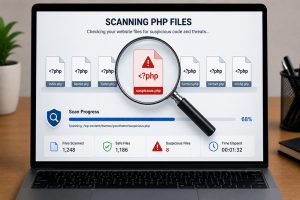
WordPress updates are important, but clicking “Update” directly on a live business website can create unnecessary risk. A new plugin version may conflict with your theme, a PHP compatibility change may affect a form, or a small layout problem may stop customers from completing an enquiry or purchase.
For UAE businesses, the impact can be especially serious when a website supports lead generation, online bookings, service enquiries, or e-commerce sales across Dubai, Abu Dhabi, Sharjah, and other emirates. A safer approach to WordPress maintenance is to test significant changes before publishing them to the live site.
This guide explains how to create a practical update-testing process, even if your business does not have a large technical team.

Why WordPress updates should be tested first
WordPress websites are built from several connected components: WordPress core, plugins, themes, PHP, the database, hosting settings, caching tools, payment gateways, and third-party services. An update to one component can change how it interacts with another.
That does not mean updates should be avoided. Delaying security, compatibility, and performance updates indefinitely can create its own problems. The goal of good web maintenance is to update in a controlled way, identify problems early, and have a clear recovery option if something does not work as expected.
Testing is particularly important before updating a website that includes:
- WooCommerce products, checkout, payment gateways, or delivery settings
- Lead forms connected to email, a CRM, WhatsApp, or another platform
- Custom-coded features, page-builder templates, or multilingual content
- Membership areas, booking systems, property listings, or customer dashboards
- Advertising landing pages that are currently receiving paid traffic
What is a staging website?
A staging website is a private copy of your live website used for testing. It normally contains the same WordPress installation, theme, plugins, database structure, and general configuration as the production site. However, visitors and search engines should not treat it as the public version of your website.
Some hosting providers offer one-click staging. Others require a developer to create a subdomain or a separate installation. The correct setup depends on your hosting environment, website size, privacy requirements, and integrations.
A staging site is not automatically safe simply because it is a copy. It must be protected with a password or access restriction, blocked from search indexing, and handled carefully if it contains customer information. For websites operating in the UAE, avoid casually copying sensitive customer records into an unsecured testing environment.
Before you update: prepare a safe testing process
Good WordPress maintenance starts before the update button is pressed. Record the current state of the website, confirm that a recent backup exists, and decide which user journeys must be checked after the change.
1. Review what is changing
Read the update notes where they are available. Check whether the release includes security fixes, bug fixes, new features, or changes to supported PHP and WordPress versions. If several plugins have updates available, do not assume that updating all of them at once is the best approach.
For a small brochure website, a grouped update may be manageable. For a WooCommerce store or a website with custom development, updating one major component at a time makes it easier to identify the source of a problem.
2. Confirm your technical baseline
Record the current WordPress version, PHP version, active theme, important plugins, and hosting environment. Also note any custom code added through a child theme, a code snippets plugin, or the hosting control panel.
This information helps a web developer compare the staging and live environments. It also makes future troubleshooting faster if an update produces a critical error, broken layout, or unexpected behaviour.
3. Create and verify a backup
A backup is essential, but a backup that has never been checked may not be useful during an emergency. Confirm that it includes both the website files and the database, and understand where it is stored and how it can be restored.
For an active e-commerce or lead-generation website, keep an appropriate recovery point before testing. If new orders or enquiries arrive after that point, restoring the entire site may overwrite newer information. This is one reason larger websites need a carefully planned recovery procedure rather than an informal backup routine.
How to test a WordPress update on staging
Once staging is ready, update the selected component there first. Avoid making unrelated design or content changes during the same test. A controlled test gives you a clearer answer about whether the update caused a problem.
Begin with the most important business journeys, not just the homepage. A website can look normal while its enquiry form, checkout, or appointment process is failing in the background.
Use this practical sequence:
- Log in and check the WordPress dashboard for warnings, failed updates, or PHP notices.
- Open the homepage, key service pages, contact page, and important landing pages on desktop and mobile.
- Submit each important form using a test address, and confirm that the notification and CRM or email connection behave correctly.
- For WooCommerce, test product pages, cart functions, coupon rules, checkout fields, payment flow, order emails, and stock behaviour without placing an unnecessary live order.
- Check menus, pop-ups, sliders, page-builder sections, embedded maps, videos, downloads, and multilingual content.
- Clear relevant caches, then repeat key checks as a normal visitor who is not logged in.
- Review browser console errors, server logs, and monitoring alerts if you or your developer has access to them.
Do not rely only on visual inspection. A form may appear correctly but fail to deliver messages. A payment button may load but return an error after a customer submits the checkout. Functional testing should follow the path a real customer takes from the first page to the completed action.
Deciding whether an update is ready for the live website
After testing, classify the result rather than treating it as simply “working” or “broken.” A minor spacing change may be acceptable, while a failed contact form is not. The decision should reflect the website’s commercial role.
Proceed when the main user journeys work, no serious compatibility warnings remain, the website performs acceptably, and the person responsible for the business has reviewed any visible changes. If the update affects a paid advertising landing page, compare the page with the live version before publishing it.
Pause the update when you find a broken form, checkout issue, login problem, major design regression, missing content, unexplained server error, or a conflict with a custom feature. A temporary delay is usually safer than publishing a known problem to customers.
How to publish tested changes safely
Moving changes from staging to production requires care. In some cases, the update itself can be repeated on the live website after staging has passed. In other cases, the staging database contains content or test orders that must not overwrite current production data.
For this reason, do not copy the entire staging website over the live site without understanding the consequences. A developer may use a deployment tool, a selective migration, or a carefully timed update process. The correct method depends on whether the website received new enquiries, orders, registrations, or content changes while testing was in progress.
Choose a low-risk maintenance window based on your actual traffic and operations. A UAE business serving customers throughout the day may need to coordinate the change outside its busiest enquiry or order period. Inform relevant staff, keep the latest backup available, and document the exact updates being applied.
What to do if the test fails
Do not repeatedly deactivate random plugins or make several changes at once. First, record the error, the page where it occurred, the user action that triggered it, and the update completed immediately beforehand.
Next, check compatibility notes, server logs, and the plugin or theme developer’s support information. A conflict may be resolved by updating a related component, changing a setting, applying a known patch, or replacing an outdated extension. If the problem involves custom code, ask a qualified developer to review it rather than editing live files without a recovery plan.
If an update has already affected the public website, professional website repair may be needed. For broader incidents, your team should know whether to roll back the specific component, restore the website, or temporarily disable a feature while the root cause is investigated.
A practical maintenance policy for UAE businesses
A repeatable policy is more reliable than waiting until an update creates an emergency. Assign responsibility for reviewing updates, maintaining access credentials, checking backups, and approving changes. Keep a simple maintenance log with the date, update name, test result, production result, and any follow-up action.
For a typical business website, the process may include routine checks each month and staging tests for major updates or high-risk changes. The exact frequency should reflect the website’s complexity, update volume, security exposure, and business value. An online store, booking platform, or website connected to several external services usually needs more structured oversight than a basic company profile site.
It is also useful to separate content work from technical updates. Publishing a new service page and updating five plugins in the same session makes it harder to identify the cause of a later problem.
When to get professional WordPress maintenance support
You may be able to handle straightforward updates on a small website, especially when the hosting provider offers reliable staging and backups. Professional support becomes more valuable when the site generates leads, processes payments, uses custom code, or cannot afford extended downtime.
An experienced maintenance partner can manage staging, update compatibility, security checks, performance reviews, form testing, and recovery planning as one connected process. Innomedia’s WordPress maintenance support can help UAE businesses keep updates controlled and aligned with their day-to-day operations.
Final checklist
Before approving a WordPress update, confirm that you have:
- A recent, restorable backup
- A protected staging website or another safe testing method
- A record of the components being updated
- Tests for forms, logins, checkout, emails, and key customer journeys
- A plan for handling new enquiries or orders during deployment
- A rollback or recovery option if the live update fails
- A maintenance log showing what was changed and when
Safe WordPress maintenance is not about avoiding change. It is about making updates predictable, testable, and recoverable before they affect customers. For a UAE business, that discipline protects both the website experience and the enquiries, sales, and trust the website is expected to generate.