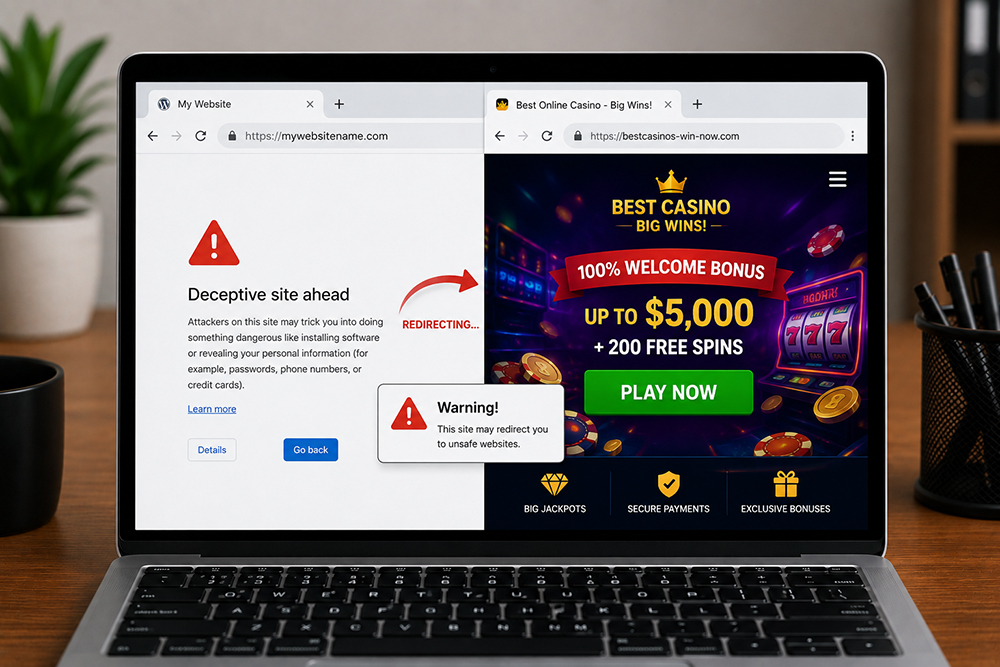
A WordPress redirect to spam usually happens when malicious code changes how your site handles visitors. The attacker may inject code into a theme file, plugin, database record, server setting, or even a legitimate-looking administrator account.
The purpose is typically financial. Attackers use your domain authority and existing traffic to send people to scam offers, adult content, phishing pages, crypto schemes, or malware downloads. Your website becomes a vehicle for traffic they did not earn.
Weak passwords or compromised user accounts
Simple passwords and shared login details give attackers an easy way in. Once they access an administrator account, they can install a plugin, modify page content, create hidden users, or add redirect scripts without triggering immediate suspicion.
Malware hidden in files or the database
Redirect malware can be placed in several locations, including:
Theme files such as functions.php, header.php, or footer.php
Plugin folders and unfamiliar PHP files
The wp-config.php file or WordPress core files
Database tables that store options, posts, widgets, or injected scripts
Hidden folders, scheduled tasks, or server-level configuration files
A hacked hosting account or server configuration
Sometimes WordPress itself is not the original problem. If the hosting account, control panel, file manager, FTP credentials, or server configuration is compromised, attackers can alter multiple sites at once.
A malicious rule in an .htaccess file can create redirects before WordPress even loads. On some hosting plans, a poorly isolated neighboring website may also increase risk. This is why a proper investigation must look beyond the WordPress dashboard.
Unsafe third-party scripts and ads
External scripts for popups, analytics, chat tools, tracking, or ads can occasionally cause unwanted redirects. This is less common than a hack, but it is possible. If the redirect began immediately after adding a new script or plugin, that change deserves attention.
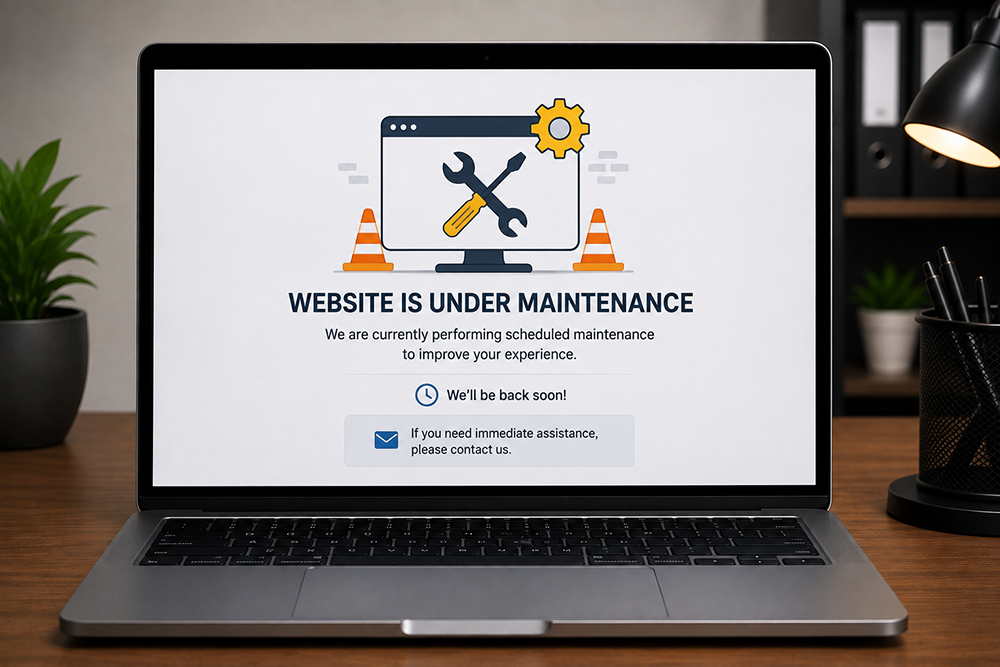
#1 Put the website into maintenance mode if needed
If visitors are actively being redirected to harmful pages, temporarily restrict access while the issue is investigated. This protects customers and reduces ongoing damage to your brand.
For a high-traffic business site, a short maintenance period is usually better than allowing customers to encounter scams. If you run paid campaigns, pause them until the landing pages are confirmed safe.
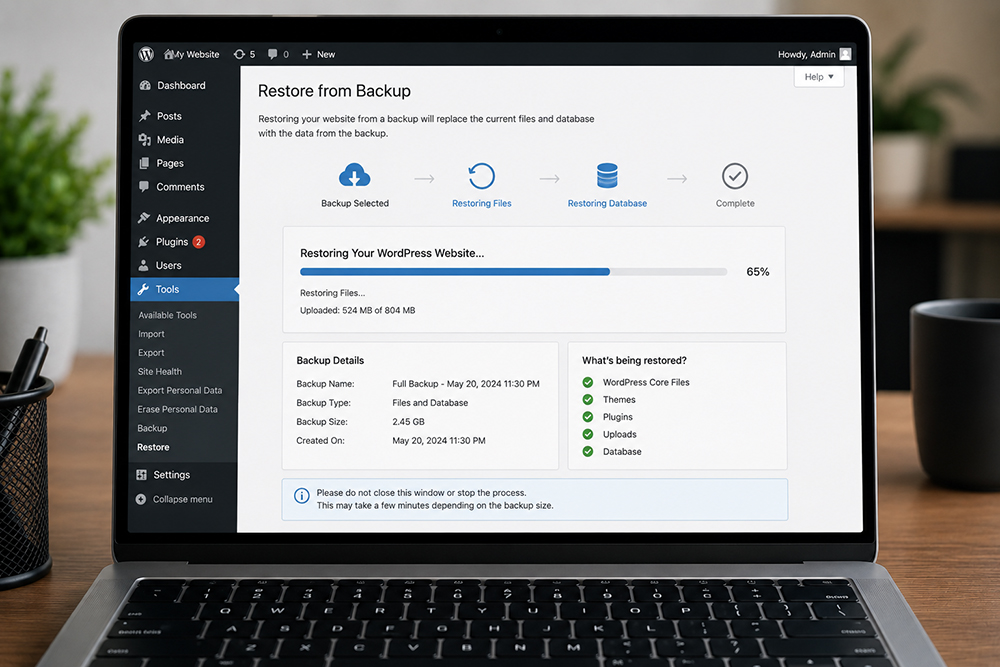
#2 Create a full backup before making changes
Back up website files and the database before cleanup. The backup gives your web developer a reference point and protects important business content if something goes wrong during restoration.
Do not assume an older backup is clean. If the infection existed for weeks or months, restoring it may simply bring the redirect back. A backup is useful, but it must be reviewed before it is trusted.
#3 Scan files, users, and the database
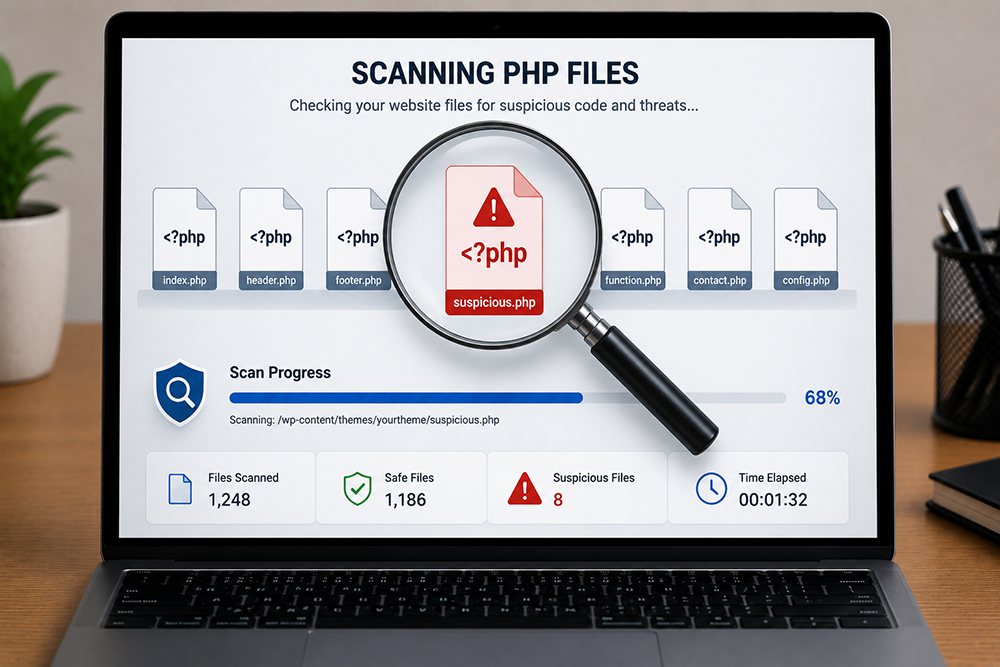
Use a reputable security scanner to identify suspicious code, modified core files, unknown administrator accounts, and malware signatures. Then review the findings carefully.
A skilled website developer should compare WordPress core files against clean versions, inspect recently modified files, review .htaccess rules, and check the database for injected JavaScript or suspicious URLs. This is the stage where the true source of the redirect is identified.
#4 Remove malware and replace compromised files
Delete malicious files and replace altered WordPress core, plugin, and theme files with clean copies from trusted sources. Avoid simply editing out a visible redirect line if you have not found the attacker’s access method.
If a premium theme or plugin cannot be verified as legitimate, replace it. If the site has custom functionality, preserve the clean custom code while removing any injected content. Careful cleanup protects both security and the features your business depends on.
#5 Reset all access credentials
Change WordPress admin passwords, hosting panel passwords, FTP or SFTP passwords, database passwords, and associated email passwords. Use unique, long passwords for each account.
Review user roles at the same time. Remove unknown users and downgrade permissions where full administrator access is not necessary. Your website should not have more admin accounts than it needs.
#6 Update and harden WordPress
Once the site is clean, update WordPress core, plugins, and themes. Remove inactive plugins and themes you no longer use, because inactive software can still create security exposure.
Then apply practical protections:
Enable a web application firewall and malware monitoring
Turn on two-factor authentication for administrator accounts
Limit login attempts and disable unnecessary file editing
Schedule automatic backups stored away from the hosting account
Keep a maintenance routine for updates, scans, and uptime checks
These measures do not guarantee that a site will never be targeted. They significantly reduce the chance that a basic attack will succeed.
A simple plugin conflict can sometimes be fixed internally. A spam redirect is different. It may involve concealed malware, server files, database entries, or stolen credentials. If Google has flagged the domain, customer data may be affected, or the redirect keeps returning, bring in a WordPress malware removal expert immediately.
An experienced web developer can clean the infection, close the security gap, verify the site across devices, and help restore normal search and advertising performance. This is usually faster and safer than trial-and-error fixes that keep your business offline longer.